A sales rep’s day, planned for them
The first page of the panel is one list for today. A salesperson takes the top item, marked “Do this now”, and never has to decide who to call first.
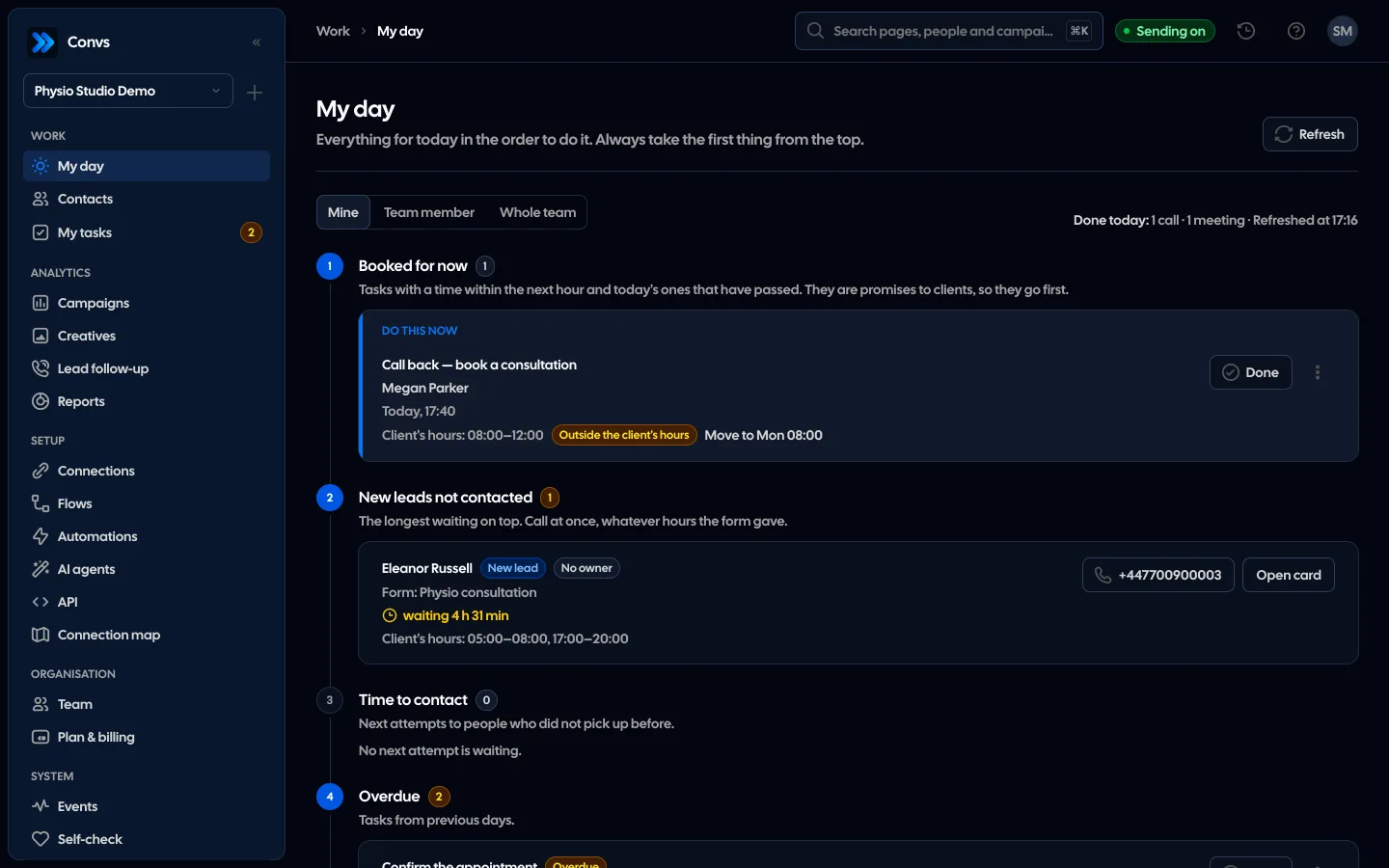
Screenshots from a demo organisation. People and numbers are fictional.
A salesperson’s day on one screen
The list builds itself from tasks, new leads and next attempts. The salesperson takes whatever is on top.
The first thing on top
The first item of the list is marked “Do this now”. A task outside the client’s hours is flagged, and one click moves it into them.
Five parts, always in this order
Booked for now, new leads, time to contact, overdue and the rest of today. The count next to each part covers every item.
Longest waiting on top
A new Meta lead nobody has contacted yet, with how long it has waited and a number to tap. The first call goes out at once.
The next attempt in the client’s hours
When someone does not pick up, an automation can set the next attempt. It lands in the hours read from the form, e.g. “after 5 pm” is 17:00–20:00.
See what is already done
Calls and meetings logged today are counted at the top of the list. A manager switches the view to a team member or the whole team.
Example data
A fixed order instead of planning
The list has five parts, always in the same order: promises made to customers first, then leads that are going cold, then the rest of the day. The first item of the whole list is marked “Do this now”, so nobody starts the day by making a plan.
- 1
Booked for now
Tasks with a time within the next hour and today’s that have already passed.
- 2
New leads not contacted
People from Meta forms nobody has reached out to yet. Longest waiting at the top.
- 3
Time to contact
“Call again” tasks once the next attempt is due, with the attempt number.
- 4
Overdue
Tasks from previous days that nobody closed.
- 5
Rest of today
Later and all-day tasks for today.
A new lead waits until someone really gets in touch
Each person has one row with the form and how long they have waited, which turns red once the company’s first-contact limit has passed. A lead leaves the list only after a real contact, by the same rule Lead follow-up uses. The list covers leads from the last 30 days; history imports that arrived after the limit are left out.
How we measure response time| Entry on the person card | Takes the lead off the list |
|---|---|
| A logged call | |
| A logged meeting | |
| A stage change | |
| A status that counts as a contact, such as “No answer” | |
| A note | |
| An automatic text |
On the phone, between calls
The list works on a phone. The number starts a call, and you close a task from its row with “Done”. At the top you see how many calls and meetings were logged today.
- Leads offered to several people have a “Take it” button
- The list refreshes every minute and when you come back to the browser tab
- A row opens the person card with the full history
Contact hours read from the form
If your Meta form asks when to call, Convs reads the hours from the answer and shows them on the row and on the person card, with where they came from. A task outside those hours is flagged and moves in one click, and the next attempt from an automation lands within them. The first call to a new lead does not wait for them. Days of the week are not read, and you can always change the hours by hand on the card.
| Answer in the form | Contact hours read |
|---|---|
| “8-12” | 08:00–12:00 |
| “from 9:30 to 11” | 09:30–11:00 |
| “after 5 pm” | 17:00–20:00 |
| “before 12” | 08:00–12:00 |
| “morning” | 08:00–12:00 |
| “afternoon” | 12:00–17:00 |
| “evening” | 17:00–20:00 |
| “any time” | Any time |
| “as soon as possible” |
The next attempt when nobody answered
The automation action “Schedule next contact attempt” sets a countdown on the person card and gives the owner a “Call again” task at the chosen time: in 30 minutes, tomorrow morning, in a week or any time up to 30 days.
See automations- A person has one such task; the next attempt moves its due time instead of adding another
- When the time comes, the task shows under “Time to contact” with the attempt number
- The “Time for the next attempt” trigger can then send a text or add a task, also only from a chosen attempt on
- A call, a meeting, a stage change or a status that counts as a contact ends the countdown
The whole team’s day for the manager
A switch above the list shows other people’s day. The manager sees who is behind and whose leads have waited longest, without asking in the chat. The lead part needs access to Clients, the task parts access to Tasks.
Team results in ReportsMine
Your tasks and the leads of your customers, offered to you and with no owner.
Team member
One salesperson’s day: their tasks, next attempts and new leads. Needs access to tasks without the “Own only” limit.
Whole team
Everything at once, with the number of items in each part. The same access as viewing one person.
My day never calls or sends anything by itself. It shows the order; a person makes the call. Each part of the list shows up to 200 items, and the counts cover all of them.
With the top item of the list, marked “Do this now”. Tasks booked for now come first, then new leads not contacted, next attempts, overdue tasks and the rest of the day.
When someone logs a call or a meeting, changes the stage or sets a status that counts as a contact, such as “No answer”. A note or an automatic text is not a contact.
We save it as her contact hours and show them on the list and the card. A next contact attempt set by an automation lands after 17:00, and a task planned earlier is flagged so you can move it in one click. The first call to a new lead goes out at once.
Yes, with the “Team member” or “Whole team” switch, if their role has access to tasks without the “Own only” limit.
Then the panel opens on Events with the setup wizard. My day becomes the first page once the organisation has a source.
Related features
- CRMOne person per phone or email, full history, stages, owner, tasks and “My day” with the order of work.See details
- Lead assignmentAn owner for every lead: round robin, first to claim or by hand, so no lead gets lost.See details
- AutomationsSMS to new leads, tasks and webhooks, with sending hours and an opt-out list.See details
- Campaign reportingMeta spend joined with CRM stages: cost per lead, per qualified lead and per sale.See details
- Meta Conversions APILeads, sheet rows and orders sent to Meta from a server, without duplicates.See details
- For agenciesA separate workspace per client, roles, an all-clients overview and job queues.See details
Get started in under 5 minutes
Connect your Meta account and see which forms send good data and which need fixing.
- Free up to 100 leads a month
- No developer needed
- Automatic connection checks